FreeShippingBar User Guide
Welcome to the another creation by ESTS in Shopify.
Free Shipping Bar
This app is made by ESTS (Expound Soft Tech Solutions). The free shipping bar tells customers how much they need to spend on free shipping as they add more items to their cart. As a result, it increases sales and attracts customers to your store.
Section-1 Setup Instructions.
Let's get started by following this guide.
1. Install through the Shopify App Store
Steps:
- Log in to the Shopify App Store.
- Find the FreeShippingBar app to install, and then click it.
- On the app listing page, click Add app.
- In your Shopify admin, to authorise the use of the app, click Install app.
2. After the app is installed, you can view and use it from the Apps page in your Shopify admin.
Open the app in Shopify.
Steps:
- From your Shopify admin, go to Settings.
- Find and select Apps and sales channel
- Click the name of the app FreeShippingBar to open.
As you click the name of the app, FreeShippingBar, it opens. It will look like this.
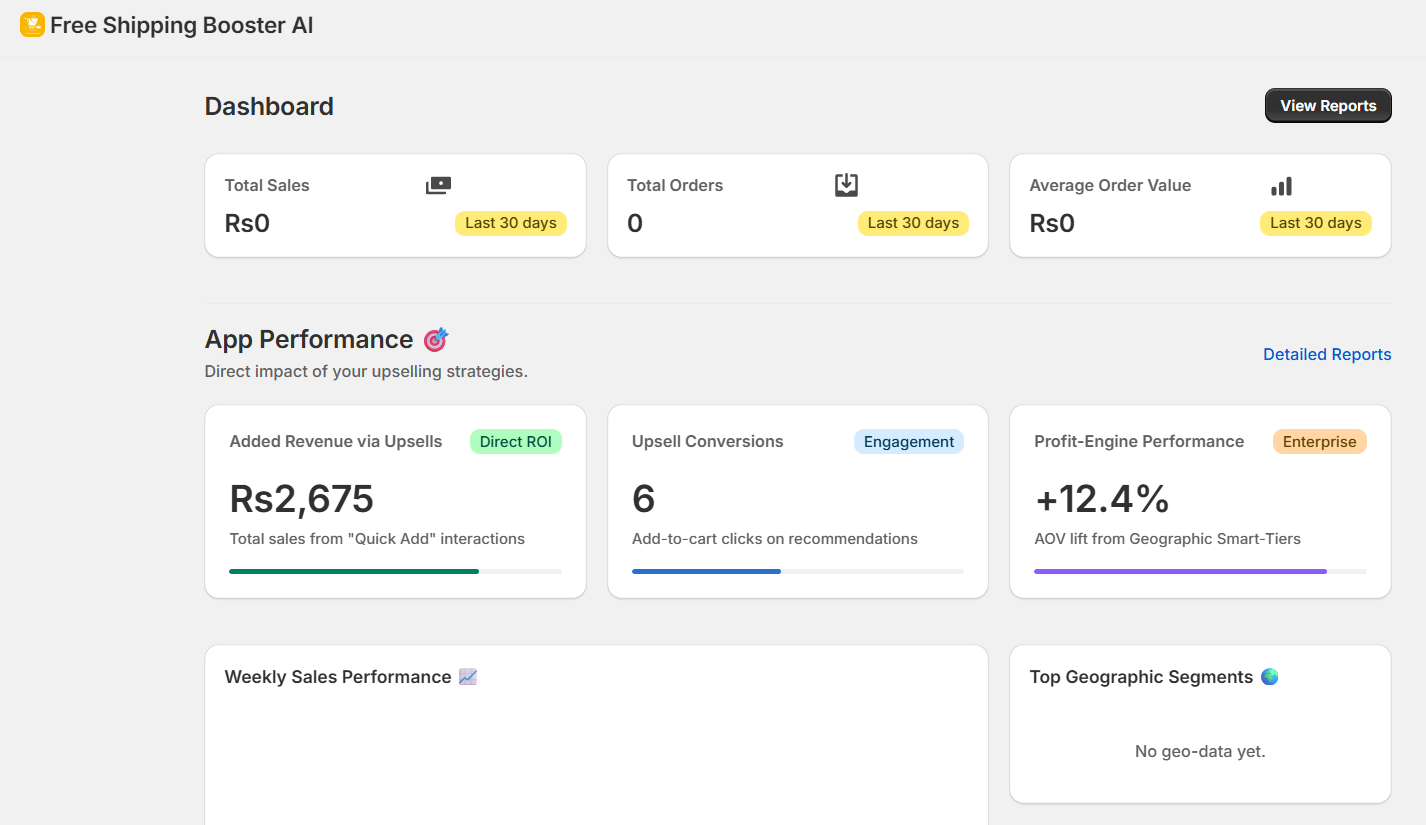
You have successfully completed the app Installation and setup process.
Section 2: User Guide.
1. How to use the FreeShippingBar app?
- Enter Price For Free Shipping: Here, enter the price at which you want to provide free shipping.
- Enter Starting Text For Shipping Bar: Add the text here that you want to appear in the starting free shipping bar.
- Note: Price to be entered in this text as per the above input
- Select Text After Reached Free shipping: Add the text here that you want to be displayed when the free shipping purchase is complete.
- Click on Submit To Submit our Shipping bar text.
2. How to apply the app to your current theme?
To apply the features to your current theme, you need to perform the following steps.
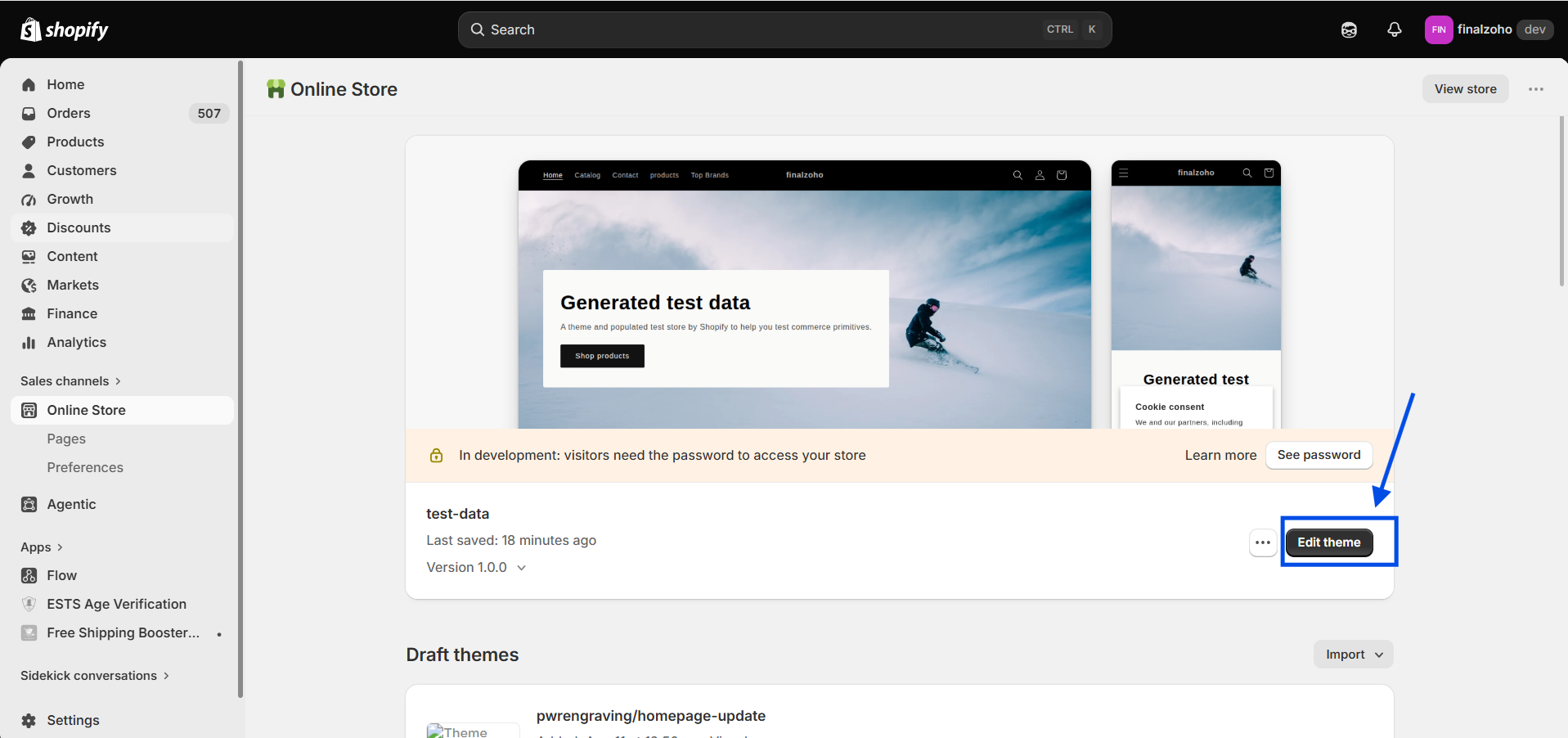
- Click on Online Store, as we have highlighted in the pic below.
- Click on App embeds as we have highlighted in the pic below.
- Now switch on the toggle button Ests_ShippingBar as we have highlighted in the pic below.
- As you switch on the toggle button of Ests_ShippingBar, the save button at the top-right corner will get active, as we have displayed in the pic below.
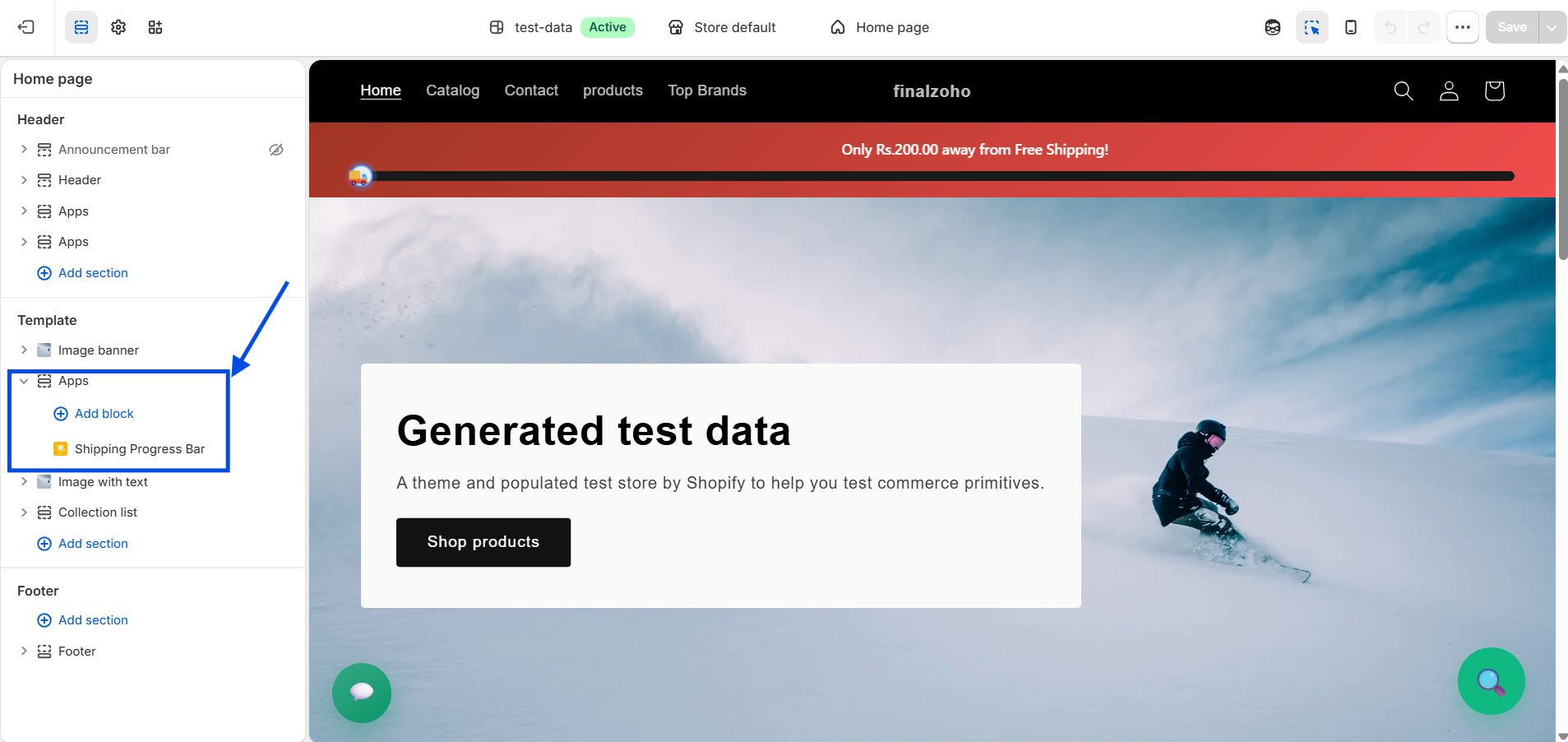
- Now, finally, click on the Save button in the top-right corner of the screen.
Click on Online Store, as we have highlighted in the pic below.
Click on App embeds as we have highlighted in the pic below.
Now switch on the toggle button Ests_ShippingBar as we have highlighted in the pic below.
As you switch on the toggle button of Ests_ShippingBar, the save button at the top-right corner will get active, as we have displayed in the pic below.
Now, finally, click on the Save button in the top-right corner of the screen.