Welcome to Quick Integration
App Name: Quick Integration
Developed by: ESTS (Expound Soft Tech Solution)
Thank you for installing Quick Integration!
This app is designed to seamlessly integrate your Shopify store with QuickBooks, helping you manage products, customers, and orders effortlessly — all in one place.
Key Features
Sync Products: Instantly sync products from your QuickBooks account into your Shopify store with a single click.
Sync Customers: Easily sync your Shopify customers to QuickBooks for unified record management.
Sync Orders: Sync Shopify orders to QuickBooks to keep your accounting and inventory perfectly synchronized.
With just one app, you can manage multiple essential operations between Shopify and QuickBooks — saving time and reducing manual effort.
What You’ll Learn
In the following sections, you’ll learn how to set up and use the app effectively:
Note: Before proceeding, please ensure that you already have an active QuickBooks account. If you don’t have one yet, then create it.
Once your QuickBooks account are ready, you can continue with connecting your Shopify store to QuickBooks.
Section 1: Set Up Shopify Store with QuickBooks
Before you can start synchronizing data between QuickBooks and your Shopify store, you’ll need to establish a secure connection between the two platforms.
This setup process is quick and straightforward. Simply follow the guided steps provided below. If you encounter any difficulties, our support team is always available to assist you.
We’ve also included step-by-step images throughout this section to help you fill in the required fields easily and confidently.
Once you’ve selected your desired plan, go to the “Connection” tab. There, you’ll find the fields needed to connect your QuickBooks account — similar to the example shown below.
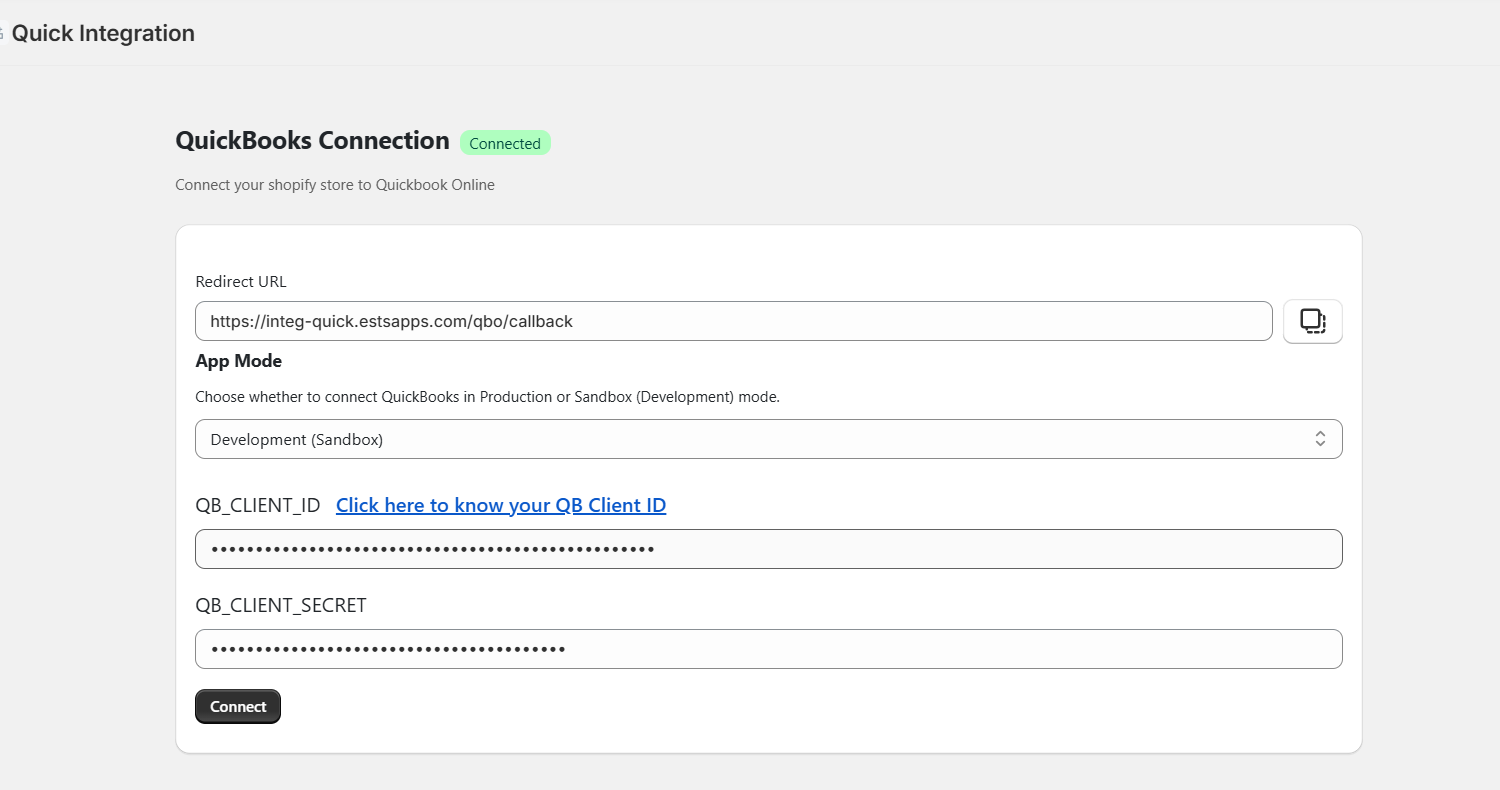
- First of all, click on “copy” button to copy the Redirect URL.
- Click on “Click here to know your QB Client ID”.
You will redirect to official QuickBooks developer account page.
Now, Signup / Login your QuickBooks account.
After successful login, you will redirect to QuickBooks developer workspace page. Click on the “+” as highlighted.
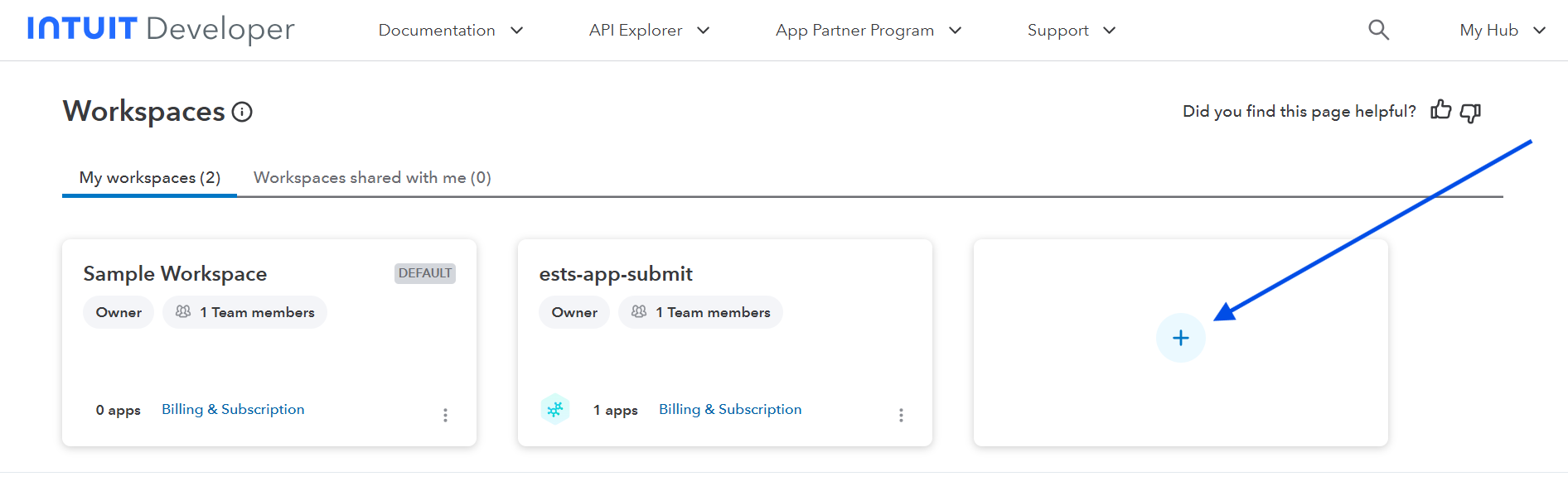
Now enter the detail as highlighted in image.
After creating it go back to workspace page and enter into workspace that you have created as highlighted in below image.
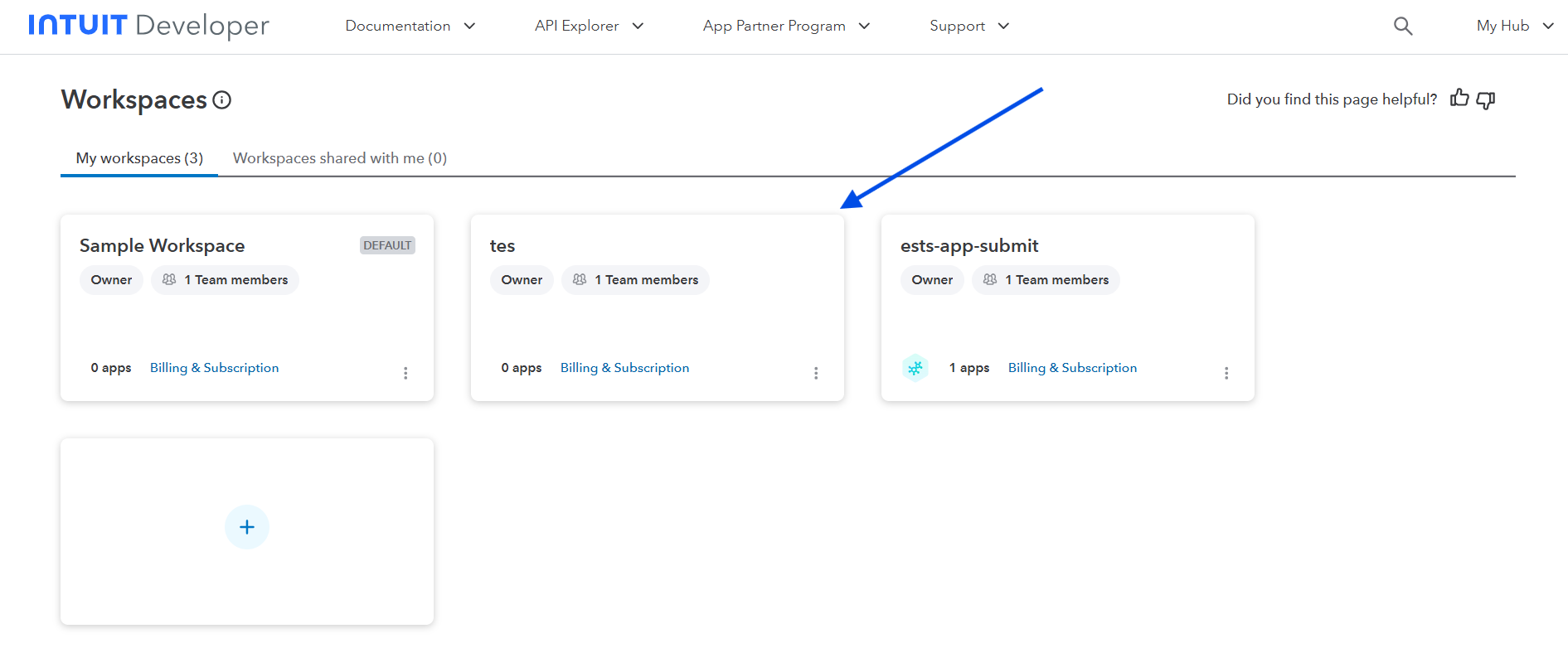
Right now You have not created any apps. You can create one now.
Enter details to create app.
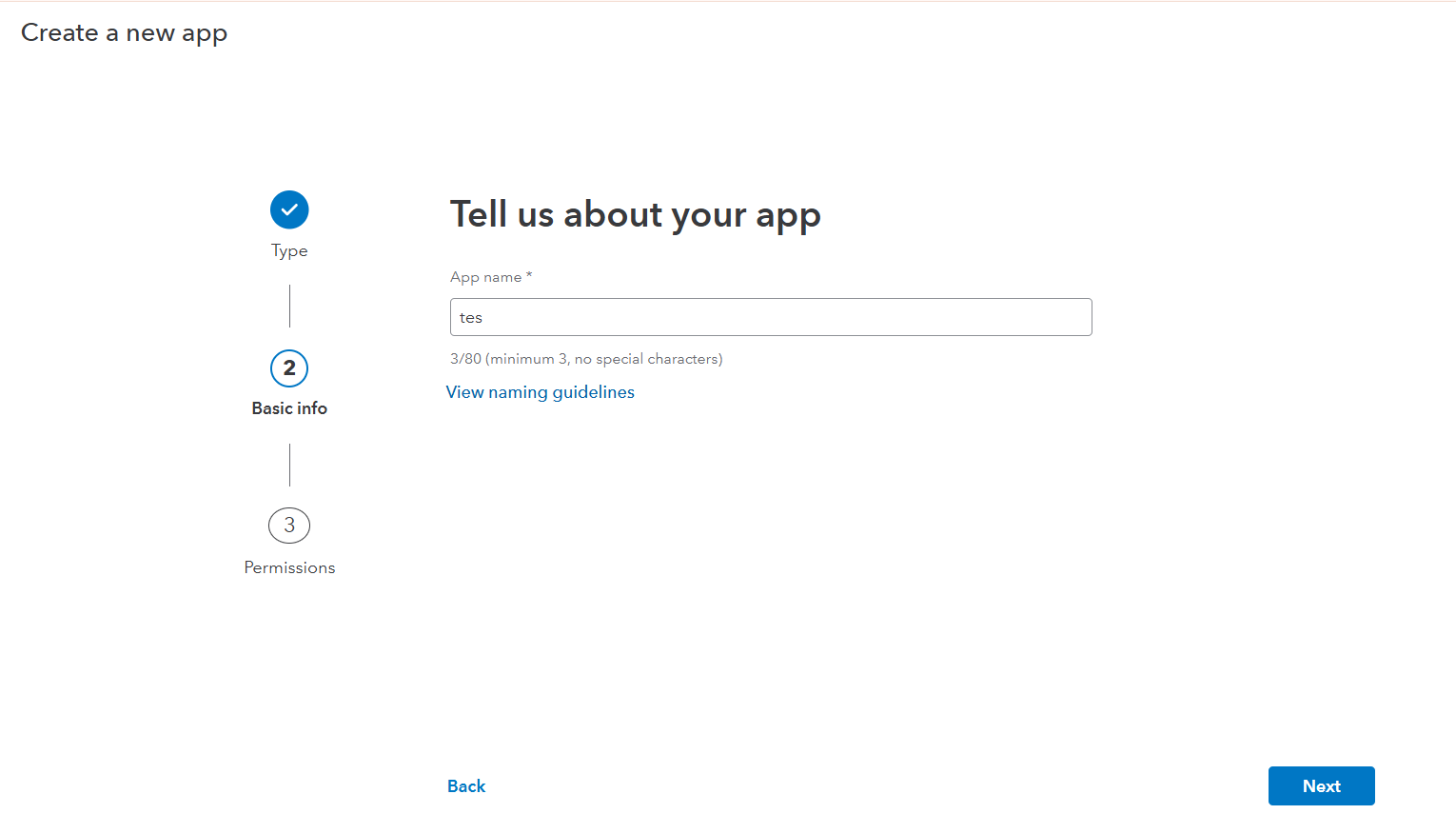
Now click on Open app and go to "Keys and Credentials" as highlighted in image.
Now ensure your QuickBooks mode either Development or Production. Right now we are taking Development mode. Now Click on redirect URLs.
and update Redirect URL from our app Connection page by click on copy button as highlighted here.
and paste here and click on save.
Now go back to Keys and credentials. Here click on toggle "Show credentials" to view your Client ID and Client Secret.
Both of this things Client ID and Client secret is essential to connect your QuickBooks account with your Shopify store.
Now copy this client ID and Client Secret and paste in QuickBooks_CLIENT_ID , secret section respectively as shown in below image and click on "connect" button.
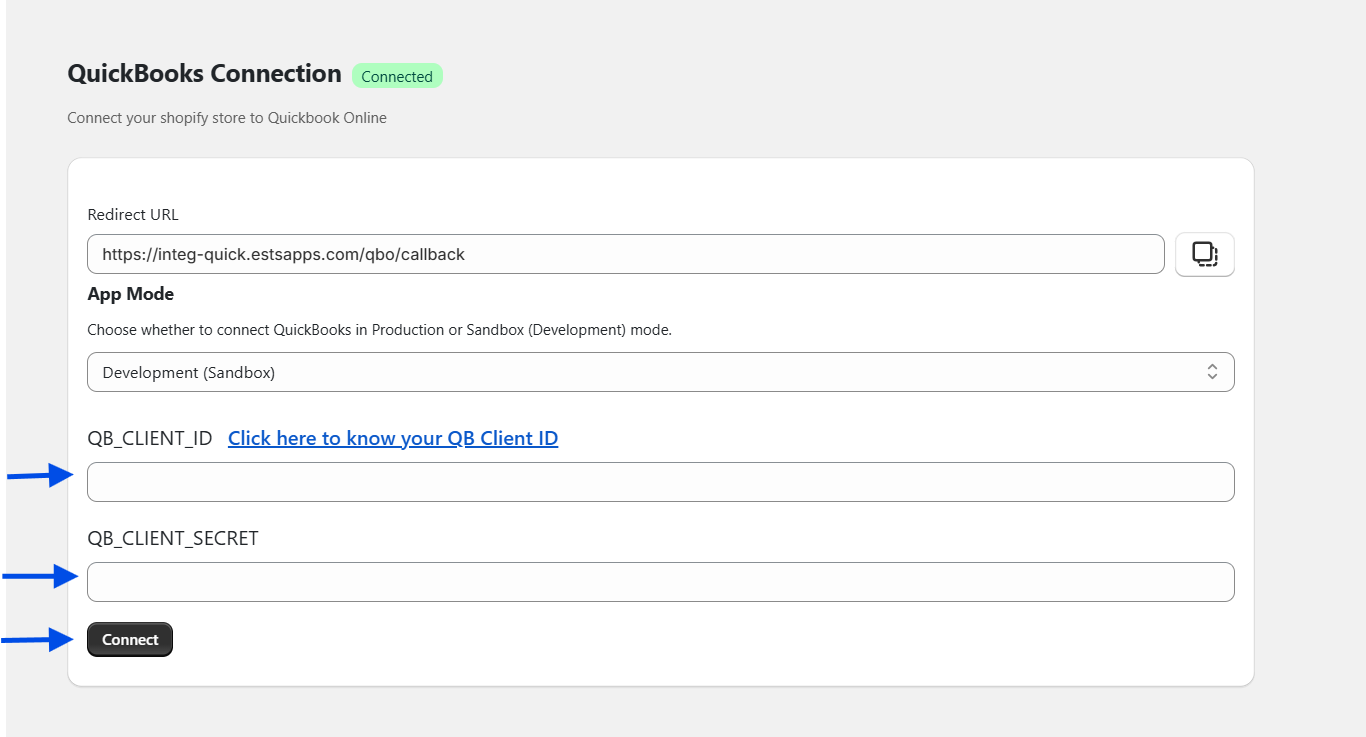
As you click on it, your credentials detail will be check by QuickBooks and if all good then it will redirect back to connection page with message "connected".
And because now you have successfully connected to QuickBooks, you need to setup by go to "settings". Here you can see 2 tabs products and orders.
setup products tab like this and click on "save". Note the accounts settings may be vary according to region and QuickBooks account.
Similarly you can setup order tab like this, or according to your need. Then click on "Save".
Now To setup Tax Mapping . Go to Tax Mapping page and map tax like this or according to your need. This setting will make effect when you export shopify order into QuickBooks .
That’s it. You are now ready to sync data between your Shopify store and QuickBooks.
Section 2: User Guide
In the section 1, we have learned how to setup your Shopify store to QuickBooks account.
Now let’s explore “Quick Integration”.
Dashboard:
On the Dashboard you can see couple of things.
Here you can check about the active plan detail and check the plan status including all details related to plan like name of plan Date of plan purchase, when will your plan will expire, amount of your active plan, check the status of plan weather it is active or expired.
You can also check the benefits of active plans. If you wish to upgrade plan any time you can upgrade it from “Change Plan” option.
Below that, you can see the Products, Customers, and Orders synchronization report in multiple forms. You can also see here that how much data you have sync from this app and what is the remaining limit for data synchronization. If you are in limit of your selected plan then it shows “within limit” while if it reached out of limit then it shows “limit reached”. So, you can identify that your plan limit is over. Once the limit is over and even you have enabled the sync order automatically. It will not sync Shopify order in QuickBooks until you upgrade the plan. Once you upgrade the plan automatic sync feature will start work.
Plan:
This is the plan page where you can choose the plan according to your requirement.
Settings:
We have already setup in Step 1. Now you have no need to touch this page again. But still, you can change setting anytime you need to update.
Products:
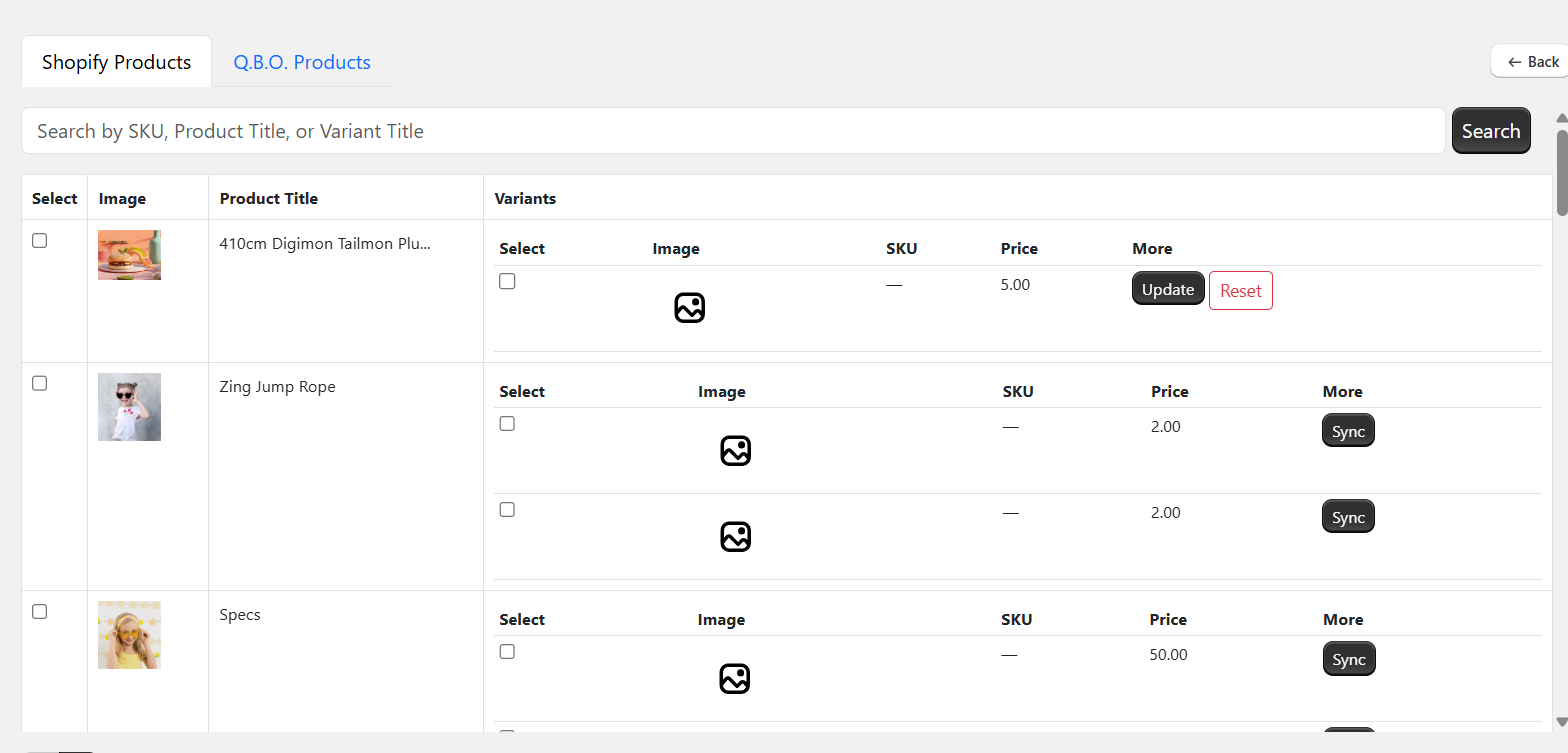
As you can see in above image. You can see “Shopify Products” as well as “QuickBooks Products” in separate tab.
You can search product of Shopify and QuickBooks too.
To sync Shopify product variant in QuickBooks, simply click on sync button. If you want to sync multiple product’s variant in QuickBooks, select the checkbox and click on button “Batch Sync” button. This button will only visible when u select one or more products.
Customers:
As you can see in above image. You can see “Shopify Customers” as well as “QuickBooks Customers” in separate tab.
You can search customer of Shopify and QuickBooks too.
To sync Shopify customer in QuickBooks, simply click on sync button. If you want to sync multiple customers in QuickBooks, select the checkbox and click on button “Batch Sync” button. This button will only visible when u select one or more customer.
Once you sync any customer to QuickBooks then you can directly open that customer in QuickBooks by clicking button “Open in QuickBook”.
Orders:
As you can see in above image. You can see “Shopify Orders” as well as “QuickBooks Orders” in separate tab.
You can search order of Shopify and QuickBooks too.
To sync Shopify order in QuickBooks, simply click on sync button. If you want to sync multiple order in QuickBooks, select the checkbox and click on button “Batch Sync” button. This button will only visible when u select one or more order.
User Guide:
That’s all about this app. If you need any help, you can find it in User Guide section. Still if you are facing any issue out of this section, related to our app or need help to setup we are here to help you please feel free to ask.